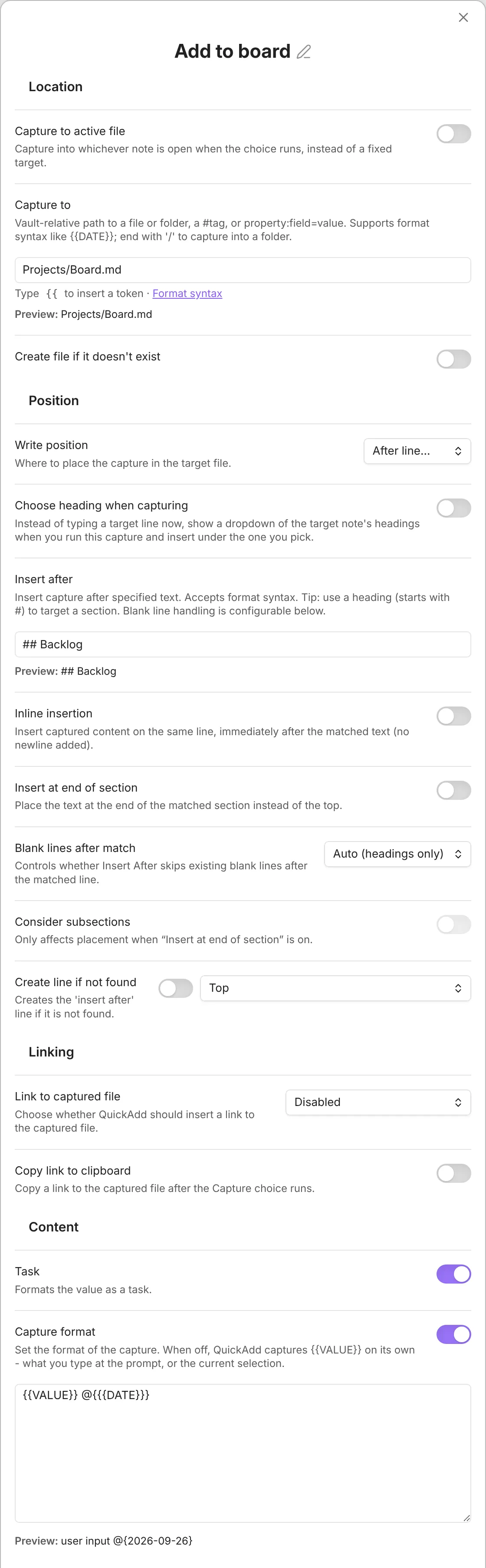
Capture: Add a task to a Kanban board
You end up with one QuickAdd command that drops whatever you type onto a Kanban board as a card in the lane you choose - without opening the board first.
Prerequisites
Section titled “Prerequisites”- The Kanban community plugin, installed and enabled.
- A Kanban board with at least one lane. Each lane is a Markdown heading, for example
## Backlog.
Imported the package above? Follow After importing in the card, then skip the manual setup below and read What you get.
- In Settings → QuickAdd, click New choice → Add to a note. The Capture builder opens; set Name (for example,
Add to board). - Set Where to your Kanban board file.
- Enable the Task toggle (in the Content section). This wraps your text in
- [ ]so Kanban reads it as a card. - Set Position to After line….
- In the Insert after field that appears, write
##followed by the name of the lane you want to add the card to. For a lane calledBacklog, that is## Backlog.
What you get
Section titled “What you get”You run the choice, type Buy milk, and QuickAdd adds - [ ] Buy milk as a new card at the end of the Backlog lane.
Add a date to the card
Section titled “Add a date to the card”Kanban recognizes a date written as @{YYYY-MM-DD} on a card. Set What to add one (before QuickAdd 2.30.0, turn on the Capture format toggle first):
-
Use today’s date automatically:
{{VALUE}} @{{{DATE}}} -
Get asked which date to use each time:
{{VALUE}} @{{{VDATE:DATE,YYYY-MM-DD}}}You can type an exact date or a natural-language date such as
tomorrow.
Read more about format syntax here.